
Browser Steps
Browser Steps allow you to automate interactions with webpages before monitoring for changes. You can log in to websites, click buttons, fill out forms, accept cookie notices, and perform any sequence of actions needed to reach the content you want to monitor.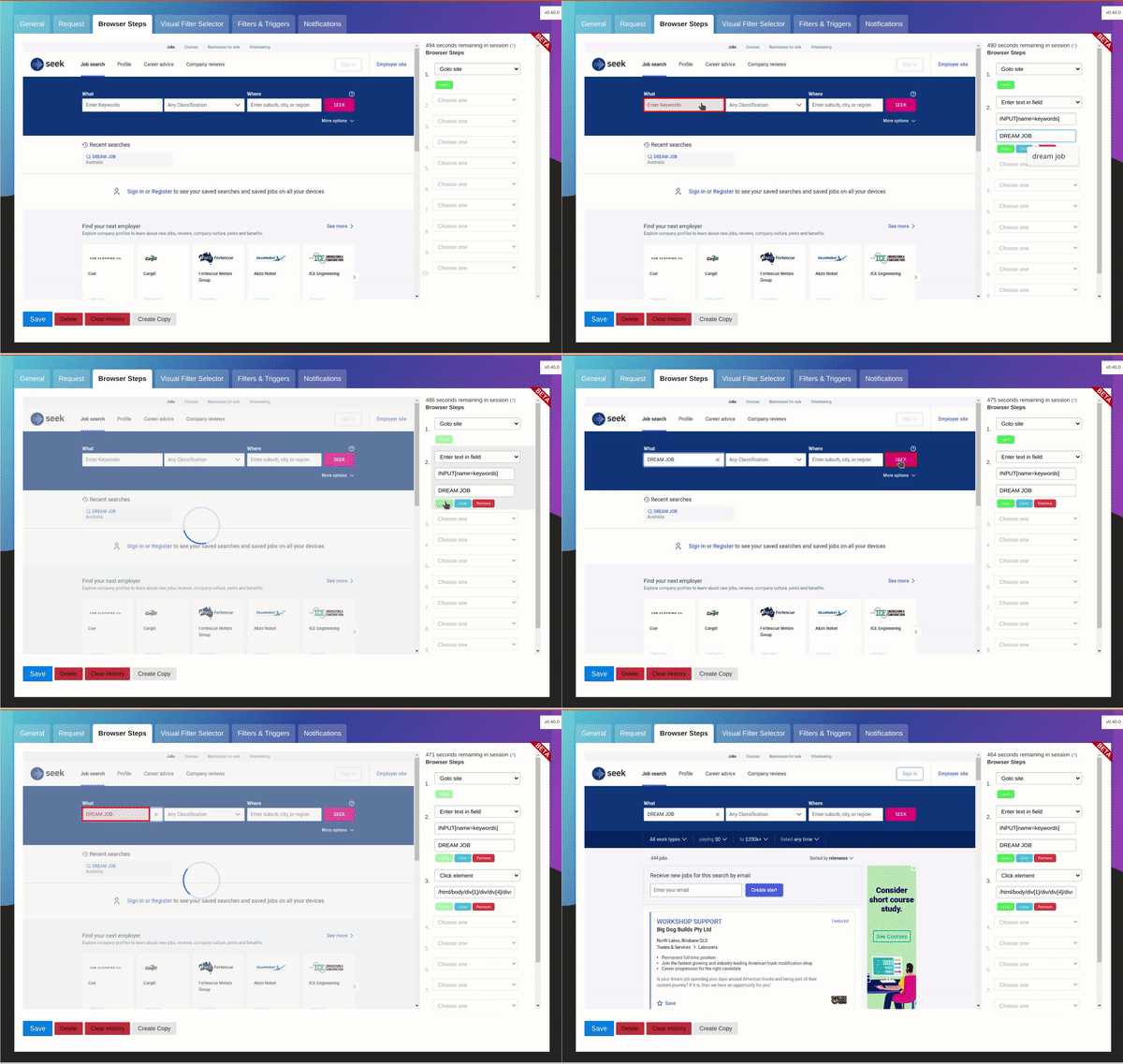
What are Browser Steps?
Browser Steps are automated actions that run before changedetection.io extracts content from a page. Think of them as a recorded sequence of clicks, typing, and navigation that prepares the page for monitoring.Browser Steps run before change detectionThe sequence is:
- Browser Steps execute (login, click, navigate, etc.)
- Page reaches the target state
- Change detection extracts and compares content
- Visual Selector or filters refine what’s monitored
Why Use Browser Steps?
Access Protected Content
Monitor content behind login screens or authentication
Navigate Complex Sites
Click through menus, search forms, or multi-step processes
Handle Popups
Dismiss cookie notices, modals, or overlay dialogs
Dynamic Interactions
Interact with JavaScript-heavy sites and single-page apps
Prerequisites
Browser Steps require a browser-based fetcher:Available Browser Steps
Browser Steps provides a comprehensive set of actions:Navigation Actions
Click Actions
Form Interactions
Wait Actions
Advanced Actions
How to Use Browser Steps
Step 1: Enable Browser Fetching
- Edit your watch or create a new one
- Set Fetch Method to Chrome/Playwright
- Navigate to the Browser Steps section
Step 2: Add Steps
1
Choose Operation
Select an action from the Operation dropdown (e.g., “Click element”, “Enter text in field”)
2
Specify Selector (if needed)
Enter the CSS selector or XPath for the elementExample selectors:
- CSS:
#username,.login-button,input[name="email"] - XPath:
//button[@id='submit'],//input[@type='password']
3
Enter Value (if needed)
Provide the text, URL, or value required for the actionExamples:
- For “Enter text in field”: your username or password
- For “Wait for seconds”: “5”
- For “Click X,Y”: “150,300”
4
Add More Steps
Click the + button to add additional steps. Steps execute in order from top to bottom.
Step 3: Test Your Steps
- Click Check now to run your watch
- Check the Last check output for errors
- Use the screenshot (if enabled) to verify the final page state
- Adjust steps as needed and test again
Common Workflows
Login to a Website
Accept Cookie Notice
Search and Monitor Results
Navigate Through Multi-Step Form
Best Practices
Add Wait Steps Between Actions
Add Wait Steps Between Actions
Websites need time to respond to interactions. Always add a small wait (1-2 seconds) after clicks or form submissions.
Use Specific Selectors
Use Specific Selectors
Use unique IDs or specific classes to avoid clicking the wrong element.Good:
#submit-button, button[data-test='login']Bad: button, .btn (too generic)Handle Optional Elements with 'if exists'
Handle Optional Elements with 'if exists'
Use “if exists” variants for elements that might not always be present (like cookie notices).
Test with Screenshots Enabled
Test with Screenshots Enabled
Enable screenshots in your watch settings to see the final page state after all steps execute.Go to watch settings → Enable “Attach screenshot to notification”
Keep Steps Simple and Sequential
Keep Steps Simple and Sequential
Break complex workflows into clear, ordered steps. If something fails, it’s easier to debug.
Finding Selectors
Using Browser DevTools
1
Open DevTools
Right-click on the element → Select Inspect (or press F12)
2
Locate the Element
The DevTools will highlight the HTML element
3
Copy Selector
Right-click on the element in DevTools → Copy → Copy selector (CSS) or Copy XPath
4
Test Selector
Paste the selector into the Browser Steps field and test
Selector Tips
Troubleshooting
Step Fails: Element Not Found
Causes:- Element hasn’t loaded yet
- Selector is incorrect
- Page structure changed
- Add a “Wait for seconds” step before the failing step
- Use “Wait for text” to ensure content has loaded
- Verify the selector using browser DevTools
- Use “if exists” variant if element is optional
Login Doesn’t Work
Common issues:- Missing wait time after submitting credentials
- Website uses CAPTCHA or bot detection
- Incorrect selector for username/password fields
Page Redirects Unexpectedly
Solution: Use “Wait for text” to ensure the target page has loaded:JavaScript Not Executing
Verify:- JavaScript is valid syntax
- You’re using “Execute JS” action
- The script returns a value or modifies the page
Advanced Techniques
Using Jinja2 Variables
Browser Steps support Jinja2 templating for dynamic values:Combining with Visual Selector
Recommended Workflow
- Use Browser Steps to navigate and interact with the page
- Use Visual Selector to choose what content to monitor
- Use Filters to refine change detection
Executing Complex JavaScript
For advanced scenarios, use “Execute JS” to run custom code:Security Considerations
Related Features
Visual Selector
Select specific page elements after Browser Steps complete
Filters & Triggers
Refine what content triggers change notifications
Next Steps
1
Create Your First Browser Step
Set up a simple login or cookie acceptance flow
2
Combine with Visual Selector
Use both features together for powerful monitoring
3
Set Up Notifications
Configure alerts when monitored content changes