
Documentation Index
Fetch the complete documentation index at: https://mintlify.com/sorgm/data-architecture-docs/llms.txt
Use this file to discover all available pages before exploring further.
Prerequisites:
- Node.js version 19 or higher
- A docs repository with a
docs.jsonfile
Install the Mintlify CLI
Install the CLI globally using npm:This gives you access to the
mint command for local development and validation.Custom ports
By default, Mintlify uses port 3000. You can customize the port Mintlify runs on by using the--port flag. For example, to run Mintlify on port 3333, use this command:
CLI commands
The Mintlify CLI provides several useful commands for managing your documentation:Update CLI version
Keep your CLI up to date to ensure your local preview matches production:Each CLI release is associated with a specific version of Mintlify. If your local preview does not align with the production version, update the CLI.
Validate links
The CLI can assist with validating links in your documentation. To identify any broken links, use the following command:Best practices
Use AI-assisted writing
Install the Mintlify skill for your AI coding tool:
Code formatting
Use the MDX VSCode extension for syntax highlighting and Prettier for formatting.
Deployment
When you push changes to your repository, the Mintlify GitHub app automatically deploys your updates. If the deployment is successful, you should see the following: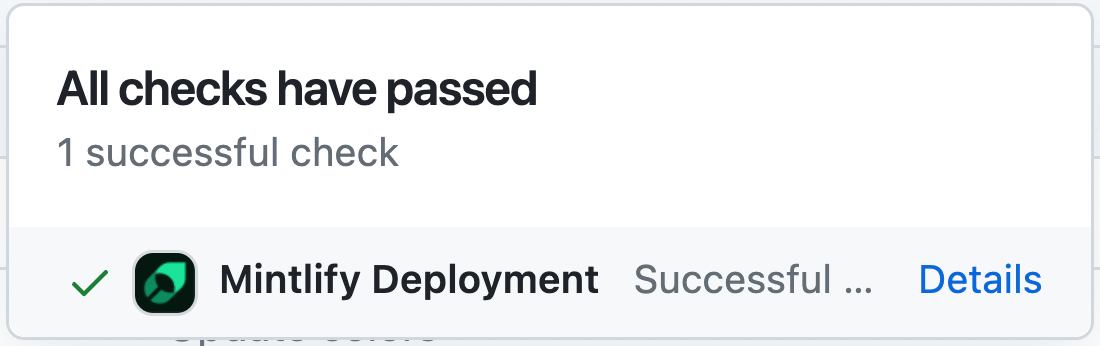
Troubleshooting
Error: Could not load the "sharp" module using the darwin-arm64 runtime
Error: Could not load the "sharp" module using the darwin-arm64 runtime
This may be due to an outdated version of node. Try the following:
- Remove the currently-installed version of the CLI:
- Upgrade to Node v19 or higher.
- Reinstall the CLI:
Issue: Encountering an unknown error
Issue: Encountering an unknown error
Go to the root of your device and delete the
~/.mintlify folder. Then run mint dev again:Issue: Dev environment isn't running
Issue: Dev environment isn't running
Run If the issue persists, try removing and reinstalling the CLI.
mint update to ensure you have the most recent version of the CLI:Issue: Page loads as a 404
Issue: Page loads as a 404
Make sure you are running in a folder with a valid
docs.json file. The CLI must be run from the root of your documentation directory.Verify your docs.json navigation includes the page path: