Prerequisites
Before installing HAI Build, ensure you have:1
Visual Studio Code
Download and install VS Code version 1.84.0 or higher
2
API Keys (Optional)
Obtain API keys for your preferred LLM provider:
- Anthropic (Claude)
- OpenAI
- Google AI Studio (Gemini)
- OpenRouter (Multiple providers)
3
Git (Recommended)
Install Git for version control integration features
You can start using HAI Build without API keys by configuring them later. The extension will prompt you when needed.
Install from VS Code Marketplace
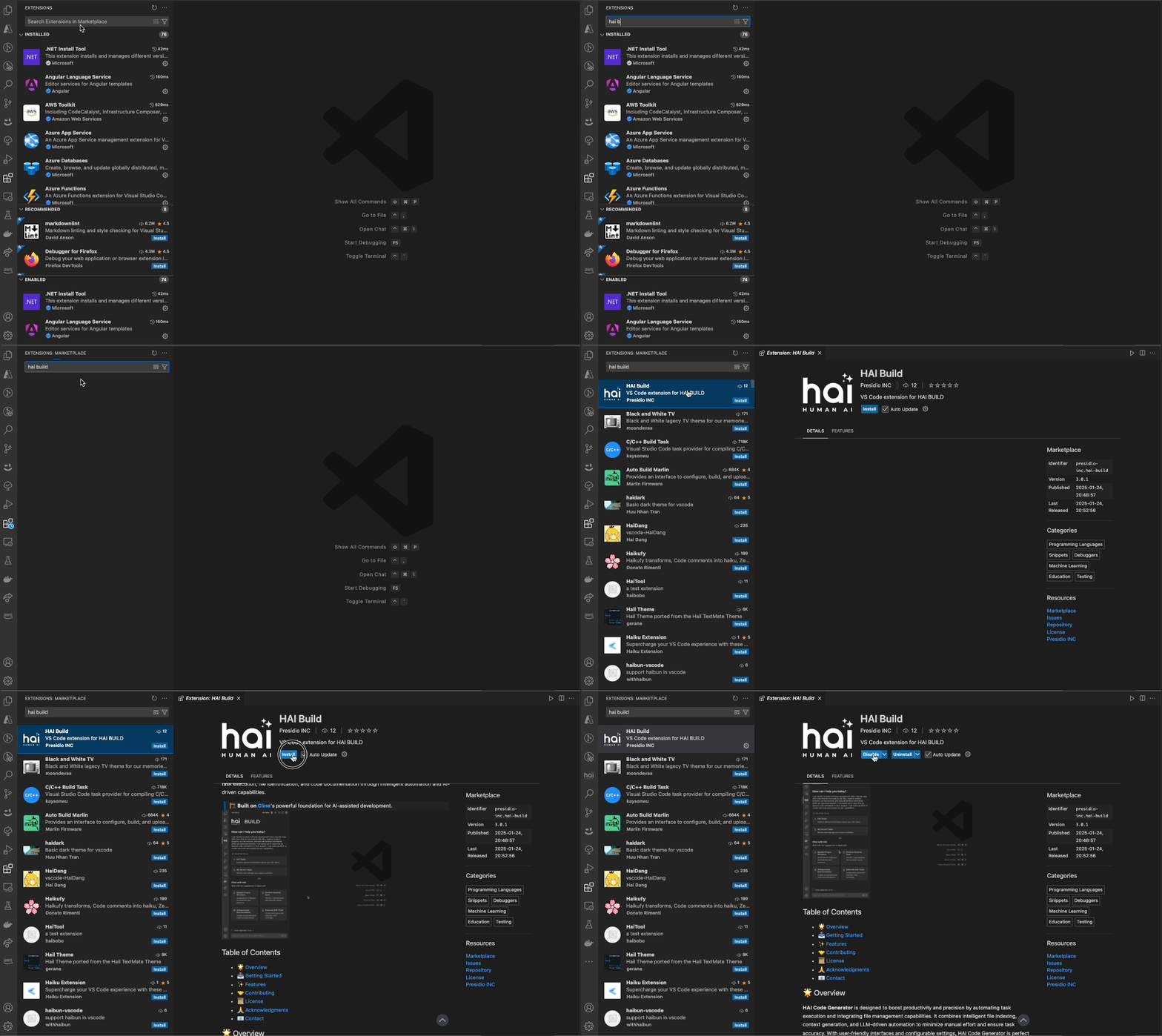
The easiest way to install HAI Build is directly from the VS Code Extensions marketplace:1
Open VS Code Extensions
Press
Ctrl+Shift+X (Windows/Linux) or Cmd+Shift+X (macOS) to open the Extensions view2
Search for HAI Build
Type “HAI Build” in the search bar
3
Install the Extension
Click the Install button next to “HAI Build Code Generator” by Presidio
4
Verify Installation
Look for the HAI icon in the VS Code activity bar (left sidebar)
Alternative Installation Methods
Install via Command Palette
Install from VSIX File
For offline installation or testing pre-release versions:1
Download VSIX
Download the
.vsix file from GitHub Releases2
Install from VSIX
Open Command Palette and run:
Extensions: Install from VSIX...3
Select File
Browse to your downloaded
.vsix file and select it4
Reload VS Code
Reload VS Code when prompted to activate the extension
Post-Installation Setup
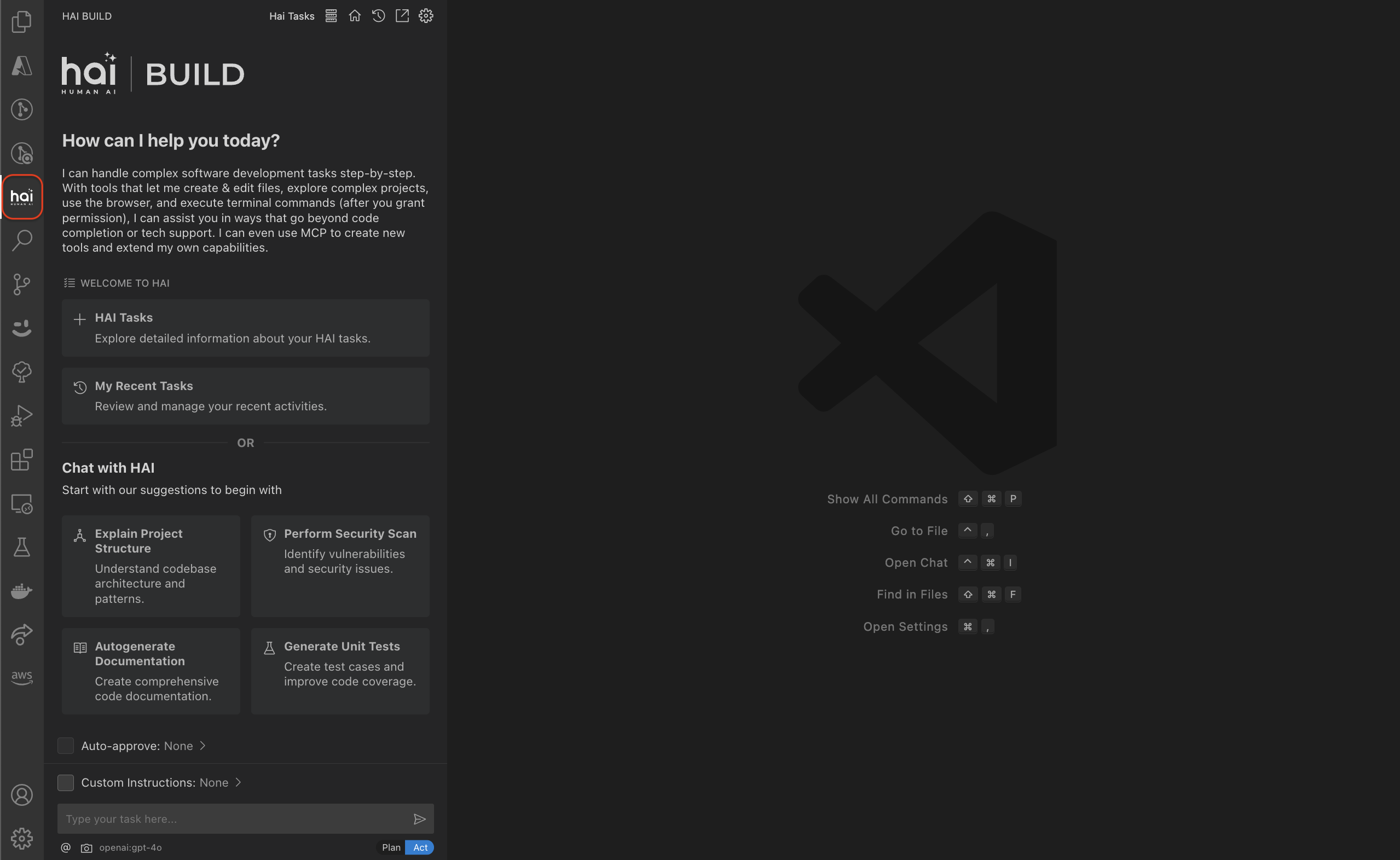
After installing HAI Build, complete these configuration steps:1. Open HAI Build Interface
Click the HAI icon in the activity bar or pressCtrl+' (Windows/Linux) or Cmd+' (macOS)
2. Configure Your LLM Provider
1
Open Settings
Click the settings gear icon in the HAI sidebar or use the Settings button
2
Select Provider
Choose your preferred LLM provider from the dropdown:
- Anthropic (Claude Sonnet, Opus, Haiku)
- OpenAI (GPT-4, GPT-3.5)
- Google (Gemini Pro, Ultra)
- OpenRouter (Access to multiple providers)
- Ollama (Local models)
- AWS Bedrock, Azure, Vertex AI
3
Enter API Key
Paste your API key in the configuration field
4
Select Model
Choose the specific model you want to use (e.g.,
claude-sonnet-4.5)3. Configure Optional Features
Telemetry Settings
For teams wanting to track AI usage and metrics:.hai.config file at your workspace root.
MCP Servers
Extend HAI with Model Context Protocol servers:1
Click MCP Icon
Click the server icon in the HAI sidebar navigation
2
Browse Marketplace
Explore available MCP servers for databases, APIs, and tools
3
Install Servers
Click install on servers you want to use with HAI
4
Configure
Provide any required configuration (connection strings, API keys, etc.)
4. Complete the Walkthrough
HAI Build includes an interactive walkthrough to help you learn key features:- Goal-oriented prompting - How to communicate effectively with HAI
- Codebase learning - Letting HAI understand your project structure
- Model selection - Choosing the right AI models for your needs
- MCP tools - Extending capabilities with external integrations
- Control & approval - Reviewing and managing AI-generated changes
Verify Your Installation
Confirm everything is working correctly:1
Open a Project
Open a workspace or folder in VS Code
2
Start a New Task
Click the
+ (New Task) button in the HAI sidebar3
Test Simple Query
Ask HAI a simple question about your code: “Explain the structure of this project”
4
Review Response
Verify that HAI analyzes your codebase and provides a thoughtful response
If HAI doesn’t respond, check that:
- Your API key is correctly configured
- You have internet connectivity
- Your selected model is available (check provider status pages)
Keyboard Shortcuts Reference
Memoize these shortcuts for efficient workflow:Troubleshooting
Extension Not Appearing
1
Reload VS Code
Press
Ctrl+Shift+P / Cmd+Shift+P and run: Developer: Reload Window2
Check Installation
Go to Extensions view and verify HAI Build is installed and enabled
3
Check VS Code Version
Ensure you’re running VS Code 1.84.0 or higher
API Key Issues
1
Verify Key Format
Ensure your API key has no extra spaces or line breaks
2
Check Provider Status
Visit your LLM provider’s status page to verify service availability
3
Test Key
Use the provider’s playground or API to verify the key works
4
Review Quotas
Check that you haven’t exceeded API rate limits or quotas
Performance Issues on Linux
Linux users may need additional system libraries:Next Steps
Now that HAI Build is installed and configured:Quick Start Guide
Learn how to use HAI Build for your first task
GitHub Repository
Explore source code and contribute
Need Help?
Report an Issue
Found a bug? Let us know on GitHub
Request a Feature
Have an idea? Share it in Discussions
Email Support
Get help from the HAI team
Documentation
Browse comprehensive guides