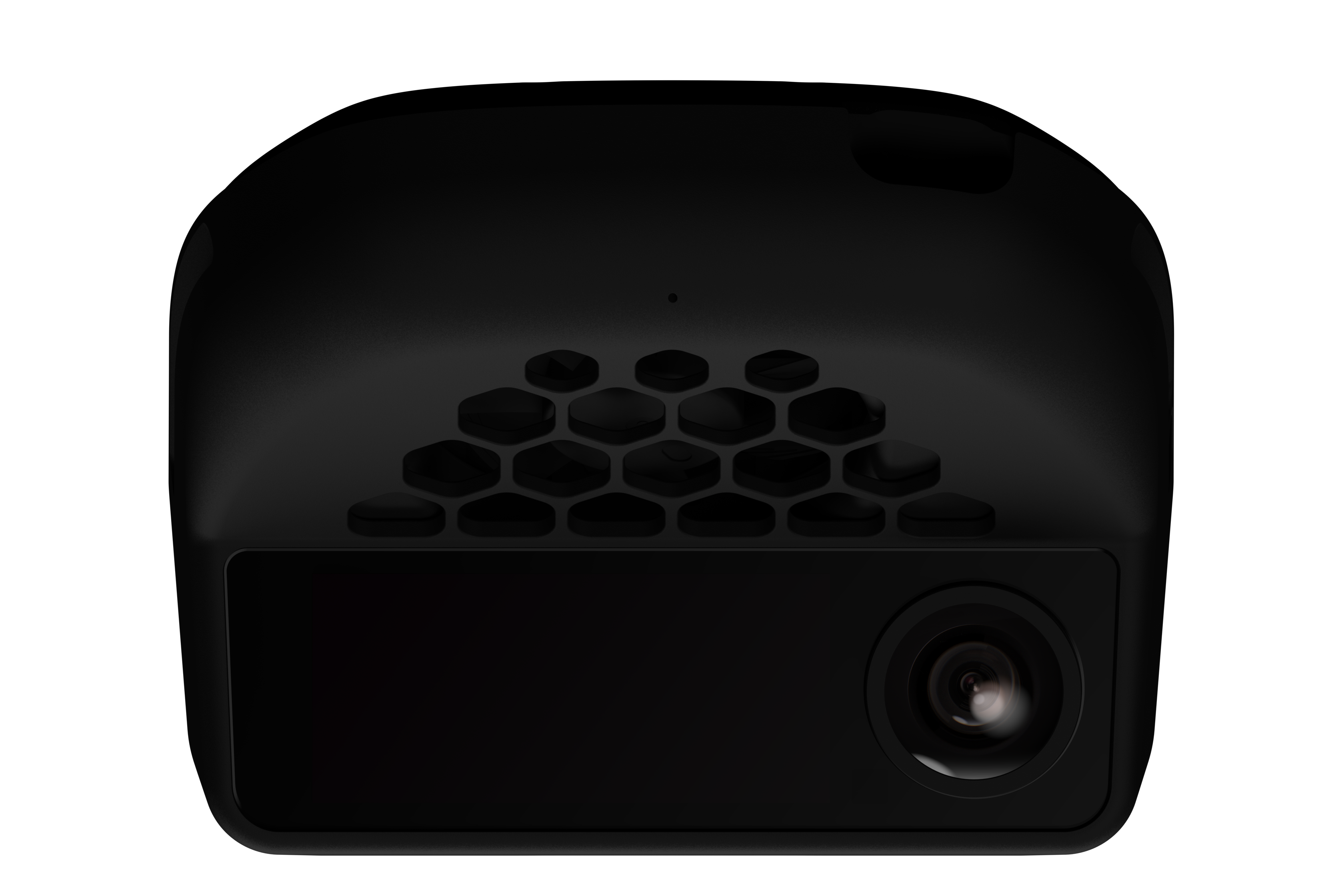
The replay tool is one of the most important utilities in the openpilot developer toolbox. It lets you reproduce any logged drive by publishing all recorded messages back onto the internal message bus, making openpilot’s processes behave as if the drive were happening live. This means you can reproduce bugs, profile algorithms, and iterate on code against real-world data — without a car, comma device, or any road time.Documentation Index
Fetch the complete documentation index at: https://mintlify.com/commaai/openpilot/llms.txt
Use this file to discover all available pages before exploring further.
Authenticate with your comma account
Before replaying your own routes, authenticate so that the replay tool can fetch routes from the comma servers.Replaying a route
No hardware is required to replay a route. This works entirely on your development machine.
Run the demo route
The quickest way to get started is with the built-in demo route, which requires no authentication:
Replay one of your own routes
Find your routes at connect.comma.ai, then pass the route name to replay:
Replay a locally stored route
If you have route segments saved on disk, point replay at the directory:
Visualize in the openpilot UI
While replay is running, launch the UI to see the drive rendered with overlays:
Watch all three cameras simultaneously
Use the
--dcam and --ecam flags along with watch3 to view the road, driver, and wide cameras at once:Useful replay options
| Flag | Description |
|---|---|
--demo | Use the built-in public demo route |
-s <seconds> | Start playback from a specific offset |
-x <speed> | Set playback speed (0.2–3×) |
--dcam | Load driver camera stream |
--ecam | Load wide road camera stream |
--no-loop | Stop at the end of the route instead of looping |
-b <services> | Block specific services from being published |
-a <services> | Only publish the specified services |
ZMQ mode
By default, replay sends messages over MSGQ. To use ZMQ instead:Replaying CAN data
CAN replay requires a panda jungle and a comma four device. This is for testing that your code works with real hardware in the loop.
Connect the hardware
Connect the panda jungle to your PC via USB. Connect a comma four (or a panda) to one of the jungle’s OBD-C ports.
Run can_replay.py
From the The script replays CAN messages in a loop to all connected pandas and jungles.
tools/replay/ directory, run can_replay.py with a route name. If no route is specified, a default public route is used: